How to: Set up a Profile Event Stream Integration

The Profile Event Stream Integration (abbreviated to PES Integration) is a feature designed to enhance data exchange and personalization capabilities within the Marigold ecosystem. It enables seamless, near real-time data synchronization from Marigold Grow to other Marigold products, allowing for efficient management and sharing of participant attributes, preferences and metrics.

Note: You can set up integrations at the account level and at the Experience level. The process is the same for both, but located in different places in Grow.
Account-level integrations can be reused across multiple Experiences, while Experience-level integrations are primarily used for a one-time purpose (for example, signing up users to hear about Black Friday sales).


How to add a PES integration

Prerequisites

To access the PES Integration feature, it must first be activated.
Please contact your Customer Success Manager (CSM) or Support to enable this feature for your Marigold Grow instance.

Account-level

  1. Click on the Gear icon in the top navigation bar and select Integrations from the list of available options.

  1. You then see all existing account integrations and have the ability to add a new integration.

  1. Click + Add Integration and set up a PES integration.

Experience-level

  1. Find your Experience under the Experiences tab and edit the Experience by clicking on the Edit icon on the right-hand side.

  1. You will enter the main Experience workspace where you then click on Integrations in the left-hand side navigation menu.

  1. On the Integrations screen, both the Experience integrations and Account integrations are shown.

  1. Click + Add Integration in the Experience Integrations section (no Account Integrations can be created from here) and set up a PES Integration.


Set up a PES integration

To set up a PES integration for your Experience, follow the steps below.

You will be taken through a wizard to configure your integration. Once you have completed the steps in the wizard, it’s easy to make changes.

  1. Click on + Add Integration in the main workspace to take you into the setup wizard. (This can be done from either the Account level or the Experience level, as explained above.)

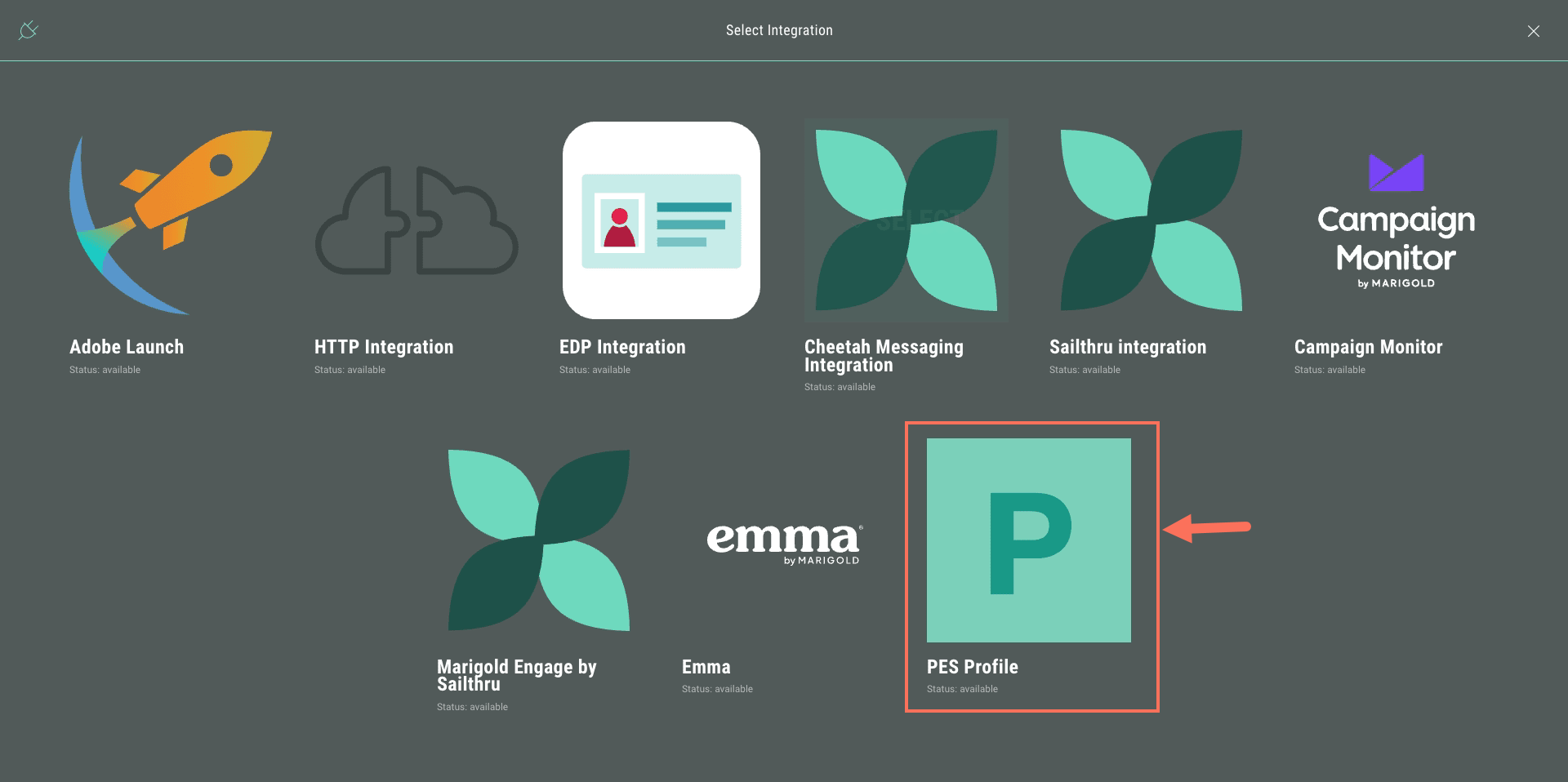
  1. Select the PES Integration.

  1. Enter a clear name for your PES Integration. Then click Next.

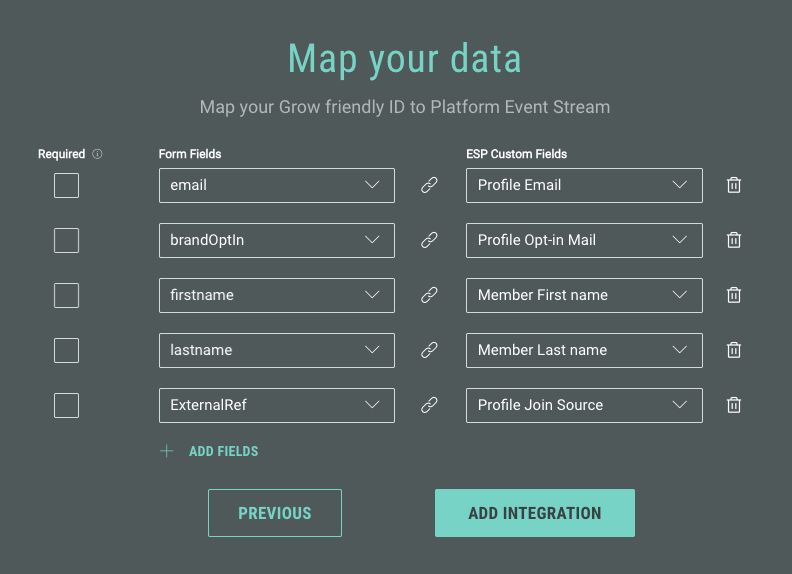
  1. Next, map your Grow Friendly IDs to your PES fields.

Example 1: If your Grow Experience collects participants' email addresses, you can select the email value from the Form Fields drop-down and the Profile Email field from the ESP Custom Fields (PES) drop-down.

Example 2: If your Grow Experience collects participants' shoe size, and there is no corresponding field, you can map it to the profileAttributes field in the ESP Custom Fields (PES) drop-down, which is a flexible key-value store for custom user profile attributes that extend beyond standard fields.

Ensure that you mark any fields that are required. If a field is marked as required, the data will only be sent if that field has been populated.

For the Experience-level integration, you're able to select the fields used within the Experience from a drop-down.
For the account-level integration, the specific fields you plan to use aren’t predetermined. You can manually add fields by typing them into the box, but you need to ensure that each one follows the established Friendly ID naming convention moving forward.

Example: If you use mobile as the Friendly ID for the Phone module, you must continue using this exact value and formatting for the integration to work as expected.

  1. Optional: Map any necessary campaign and account metadata , or skip this step if not needed.

Note: Metadata is extra context you can add to your Experience data — details like campaign name, campaign ID, or account name. It doesn’t change what you collect; it simply helps you understand where that data comes from. Think of it as a label that keeps everything organized and easy to track. Optional, but powerful when you want clearer reporting and smarter insights.

Example: You might want to map your Grow campaign name to the profileJoinSource so you can attribute any new sign-ups back to your Grow Experience.
You can select from: Campaign ID, Campaign name, ExternalRef(*), and any custom account-level metadata (ask your CSM for more info).
For users with hierarchical accounts, you also have the option to select account ID and account name.

* Note: The ExternalRef ID is autogenerated by our system, but you can enter your own code or reference by navigating to your ExperienceSettings > Advanced Options > References & Identifiers.


The source, medium and channel are auto-generated by our system, but you can add your own attributes by setting up attribution tracking.

  1. Click on Add Integration.


Publish your Integration

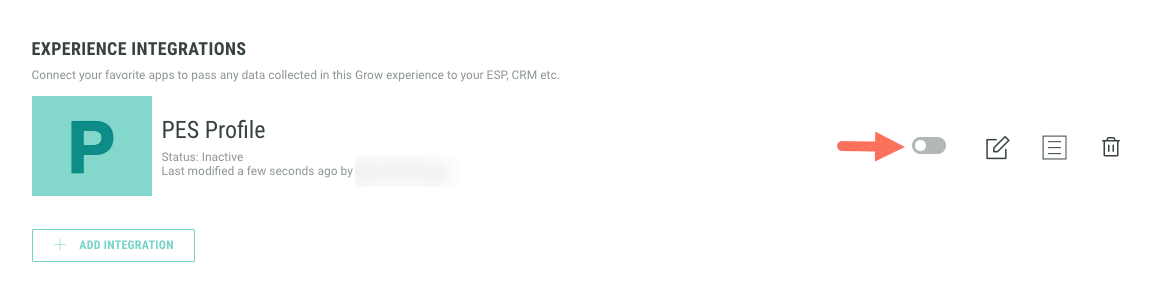
Now that you have configured your integration, you land back on the Integrations area inside your Experience.

You can publish the integration by sliding the toggle from left to right. This is only possible when the Experience itself is published.
 

PES fields

Here you find a list of all PES fields to which Grow fields can be mapped.

Token

Datatype/Value

Description

profileEmail string or null Email address associated with the user profile. Used for customer communication, identification, and cross-platform user matching. May differ from profileAltId if that uses a different identifier type.
profileProgramId string or null Loyalty program member identifier for the user. Links event to loyalty program analytics and enables member-specific analysis and retention strategies.
profilePhone string or null Phone number associated with the user profile. Used for customer communication and identification. Important for SMS marketing and customer service follow-up.
profileAppId string or null Application-specific identifier for the user within mobile or web applications. Enables app-specific user tracking and cross-session analysis.
profileDeviceId string or null Unique device identifier for the user's device (mobile advertising ID, device fingerprint, etc.). Critical for device-specific analysis and cross-session tracking.
profileExternalId string or null External system profile identifier or alternate key (AK) used for integration with third-party systems. Enables user identity resolution across integrated platforms.
profileTimezone string or null User's timezone setting for proper temporal analysis and personalized communication timing. Critical for understanding user behavior patterns and optimal engagement windows.
profileTier string or null User's loyalty program tier or membership level at the time of the event. Enables tier-specific analysis and targeted strategies.
profileTotalPoints integer or null User's total loyalty points balance at the time of the event. Helps analyze behavior patterns based on loyalty engagement level and point accumulation status.
profileAge integer or null Age of the user in years. Enables demographic analysis of behavioral patterns and age-specific insights for targeted marketing strategies.
profileAgeBand string or null Age range category derived from the user's age (e.g., '40-49', '18-25'). Simplifies demographic analysis and enables age group-based pattern recognition.
profileCohort string or null Cohort classification for the user based on signup date, behavior patterns, or other business-defined criteria. Enables cohort-based analysis of trends over time.
profileGender string or null Gender identity of the user for demographic analysis. Enables gender-based behavioral pattern analysis and targeted marketing strategies.
profileProvider string or null Service provider associated with the user's primary identifier (email domain, mobile carrier, social platform, etc.). Used for provider-specific analysis, deliverability optimization, and understanding user acquisition channels and communication preferences.
profileIgnore boolean or null Flag indicating whether this user should be excluded from business reports and analytics (true for internal staff, test accounts, etc.). Ensures data quality in business analysis.
profileJoinDate string or null ISO 8601 timestamp of when the user first joined or registered. Used for calculating member tenure and analyzing behavioral patterns based on membership duration.
profileJoinSource string or null Marketing source or campaign that originally brought the user to register. Enables long-term attribution analysis and understanding of acquisition channel impact on retention.
profileStatus string or null Current status of the user account (active, inactive, blocked, suspended, etc.). Critical for understanding event context and filtering active user analytics.
profileOptinSms boolean or null Boolean indicating whether the user has opted in to receive SMS communications. Critical for compliance with communication preferences and targeted follow-up strategies.
profileOptinMail boolean or null Boolean indicating whether the user has opted in to receive email communications. Essential for email marketing compliance and determining appropriate follow-up channels.
profileOptinPush boolean or null Boolean indicating whether the user has opted in to receive push notifications. Important for mobile app engagement and real-time communication strategies.
profileCountry string or null Country from the user's profile address information. May differ from the detected geographical country if the user is traveling or using VPN.
profileCity string or null Country from the user's profile address information. May differ from the detected geographical country if the user is traveling or using VPN.
profileState string or null State or province from the user's profile address information. Important for regional analysis and compliance with local regulations.
profilePostalCode string or null Postal or ZIP code from the user's profile address information. Enables local area analysis and location-based service optimization.
profileFirstName string or null First name of the user for personalization and customer service purposes. Enables personalized communication and proper customer identification.
profileLastName string or null Last name of the user for personalization and customer service purposes. Complements first name for complete user identification.
profileSegments array[object] or null Array of audience segments that the user belongs to at the time of the event. Each segment contains ID and name for detailed behavioral analysis and targeted strategies.
eventReason string or null Reason/cause/trigger of this event.
profileAttributes Profile Attributes or null Flexible key-value store for custom user profile attributes that extend beyond standard fields (e.g., shoe_size, 'preferred_store, dress_size). Enables business-specific user data while maintaining schema consistency.

Default: empty/null
scores Scores or null Stores custom score attributes related to the event.

Default: empty/null
isTest boolean or null Boolean flag indicating whether this is a test event that should be excluded from production analytics and reporting. When true, consumers should filter out this event from business metrics.

Default: false
categories array[string or null] or null Array of business categories or tags associated with the event (e.g., 'high_value', 'premium_customer', 'flash_sale'). Enables categorized analysis and targeted strategies.
source string or null Marketing attribution source indicating how the user arrived at the page (e.g., 'campaign', 'organic', 'referral'). Used for conversion funnel analysis and marketing ROI tracking.
medium string or null Marketing attribution medium specifying the channel type used to reach the user (e.g., 'email', 'cpc', 'sms', 'social'). Complements source data for comprehensive attribution analysis.
channel string or null Specific marketing channel or campaign name that brought the user to the flow, e.g. email, sms, push, rcs, etc. . Provides granular attribution data for campaign performance analysis.